Panacea is accompanied by a Gantry-Admin based Color Chooser. The entire template styling is controlled by the Color Chooser. Therefore, instead of having to export a series of customized images to alter the template style, you can simply change a few settings in the administrator.

Access the Color Chooser from Admin → Template Manager → rt_panacea_j15 → Settings. There is no frontend interface for the color chooser options other than the Preset Style URL switches as outlined at the Preset Styles page.

Gantry Settings → Color Chooser

Below are the elements which are directly controlled by the Color Chooser, which allows you to change the colors, whether background, text, border or overlay were applicable, on every section of the site, such as the header, main body and footer.
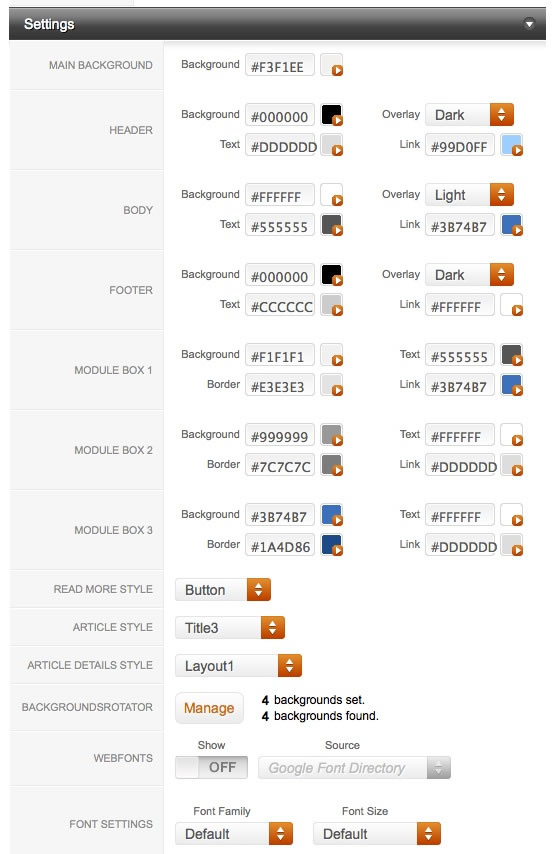
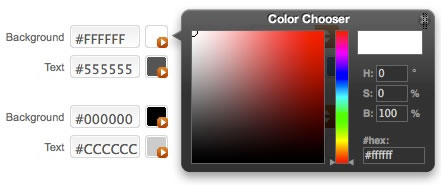
Color Chooser Options Color Chooser Interface
  • Main Background:
    • Background
  • Header:
    • Background
    • Overlay - Light or Dark
    • Text Color
    • Link Color
  • Body:
    • Background
    • Overlay - Light or Dark
    • Text Color
    • Link Color
  • Footer:
    • Background
    • Overlay - Light or Dark
    • Text Color
    • Link Color
  • Module Box 1 (Module Variation):
    • Background
    • Border
    • Text Color
    • Link Color
  • Module Box 2 (Module Variation):
    • Background
    • Border
    • Text Color
    • Link Color
  • Module Box 3 (Module Variation):
    • Background
    • Border
    • Text Color
    • Link Color

Gantry Settings → General Style Controls

Theses settings are not directly affiliated with the Color Chooser portion, but affect the template styling nevertheless.

  • Read More Style: Button or Link
  • Article Style: Default, Title1-5 and Box1-3
  • Article Details Style: Layout1-3
  • Backgrounds Rotator: Manage - Control what background images display in the background rotator feature
  • Web Fonts: On - Off; Google Font Directory
  • Font Settings:
    • Font Family: Geneva, Optima, Helvetica, Trebuchet, Lucida, Georgia, Palatino, or Various Google Fonts (dropdown)
    • Font Size: Default, Extra Large, Large, Small, Extra Small (dropdown)
Learn more

The most noticeable feature of the Panacea template is its Background Rotator below the header. This is a Gantry Feature which offers basic background rotator functionality with content calling controls. Load articles from a set category/section and select images from the background manager to fully control the effect, it is very simple.

Access the Background Rotator from Admin → Template Manager → rt_panacea_j15 → Settings. Select the images from the Background Rotator Manager, and configure the feature from the Background Rotator controls.

Background Rotator Manager

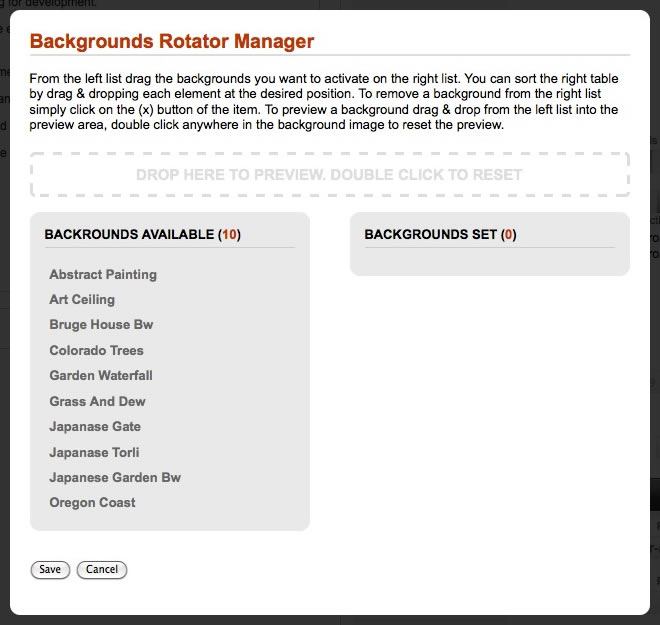
The Background Rotator Manager is the administrator based control which determines which background images appear in the rotator. Simply go to Admin → Template Manager → rt_panacea_j15 → Settings → Rotator and select the Manage button to load the Background Rotator Manager. The manager operates as follows:

  • Backgrounds Available: This is a list of all background files that are available, they are loaded from the /templates/rt_panacea_j15/images/showcase-bgs directory.
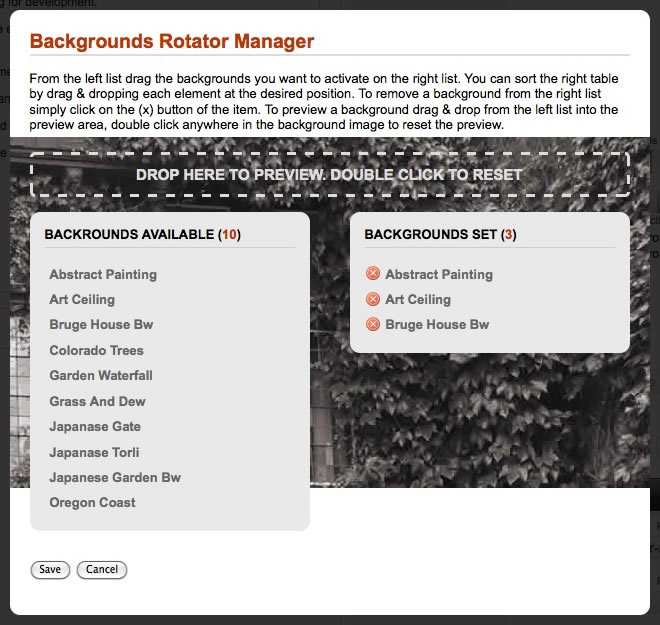
  • Backgrounds Set: This is a list of all the background files that are currently in use, and will appear in the background rotator on the frontend. You set backgrounds by dragging and dropping the file names from the Backgrounds Available list.
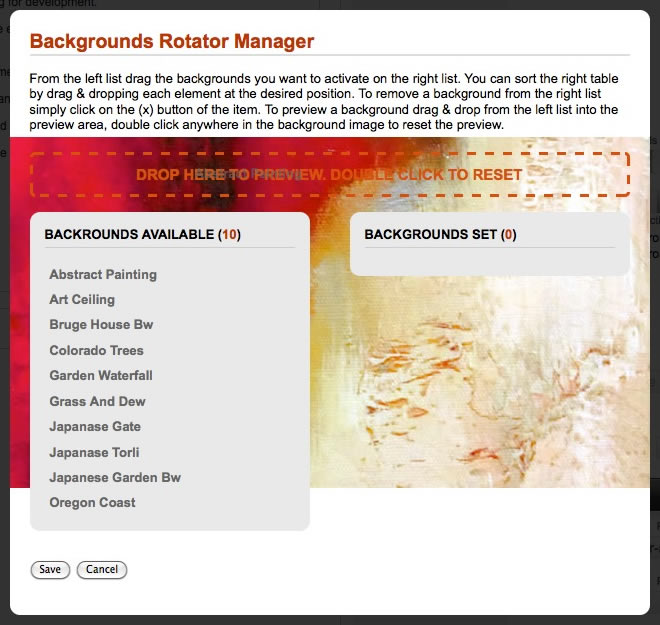
  • Drop Preview: This is the dashed box above the lists, simply drag and drop a file name into this Drop Here box and the image will be shown in the preview area.
  • Save/Cancel: Once you have decided which backgrounds you want, simply click the Save button.

Background Rotator Manager Background Rotator Manager

Background Rotator Manager Background Rotator Manager

Background Rotator Controls

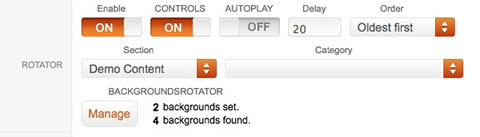
Other than determining what images to display, you can control various other aspects of the feature, all from the Gantry administrator: Admin → Template Manager → rt_panacea_j15 → Settings → Rotator

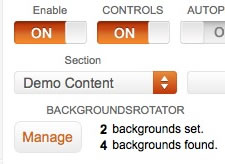
  • Enable: Enable or Disable the Rotator feature.
  • Controls: Set whether the controls - arrows and placement identifiers - appear at the top of the mainbody or are invisible.
  • Autoplay: Choose whether the feature rotates automatically or via manual input.
  • Delay: If Autoplay is enabled, set the Delay in seconds.
  • Order: Select the order in which the rotator items will display.
  • Section/Category: Set the Section or Category where you wish to load the rotator content from.
  • Manager: Set which background images load.

Background Rotator Settings